KPI Reports
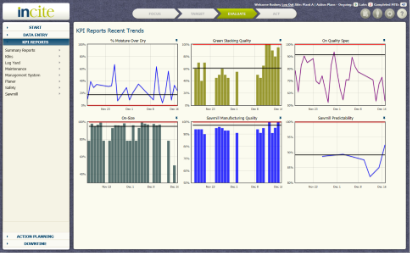
KPI Reports - Recent Trendlines |
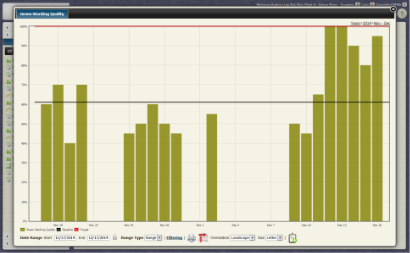
KPI Reports - Bar Graph Example (Green Stacking Quality) |
- KPI Reports in incite provide visual representation of information in both graphical and tabular formats
- KPI Reports utilize KPI data, KPIs are objects within incite that act on data sources (Data Tables and Data Views)
- KPIs allow you to modify how data is presented, for example by creating a calculation on certain data fields or creating simple averages
- Each Report has its own Type (Tabular, Bar Graph, etc.)
- Each Report like other items in incite (KPIs, Data Tables, etc.) belong to an Area
KPI Report Filtering
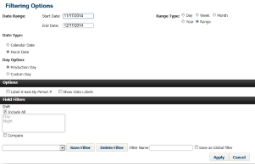
Bar Graph Filter |
- Reports of all types in incite have a filtering option included near the bottom of the report container (Filtering button)
- Filtering options include Date Range types, Date Types (Fiscal vs. Calendar date) and field and other options
- These options extend the ability to drill-down into data, reveal information and present it in a more appealing and understandable form
In the example above for a Bar Graph the following options are present:
- Date Range: The range the report will display
- Range Type: Standard range types (such as Day, Week, Month, Year and Range)
- Date Type: incite can be configured to use a standard calendar or a fiscal calendar (if fiscal date settings are prefered such as Fiscal Year)
- Day Option: incite can also be configured to use a custom start day filter (if the day does not start at 12AM and end at 11:59PM), by default Production Day is used which is a value set by incite Administrators
- Options: These report options will vary by report type (shown here 'Label X-Axis' by Period and 'Show Data Labels')
- Field Filters: If the Report has KPIs that source tables or views with fields that have multiple options like combofields or standard fields (such as Shift or Crew) then these fields are listed near the bottom of the filter window. Selecting one or more of these options will include only data that has these options. Additionally if the compare checkbox is enabled each option is graphed allowing a comparison between each.
- The last part of the Filter window is the Saved Filter section. Filter options can be saved for future use by giving it a proper name and selecting Save Filter.